
Full page in one click
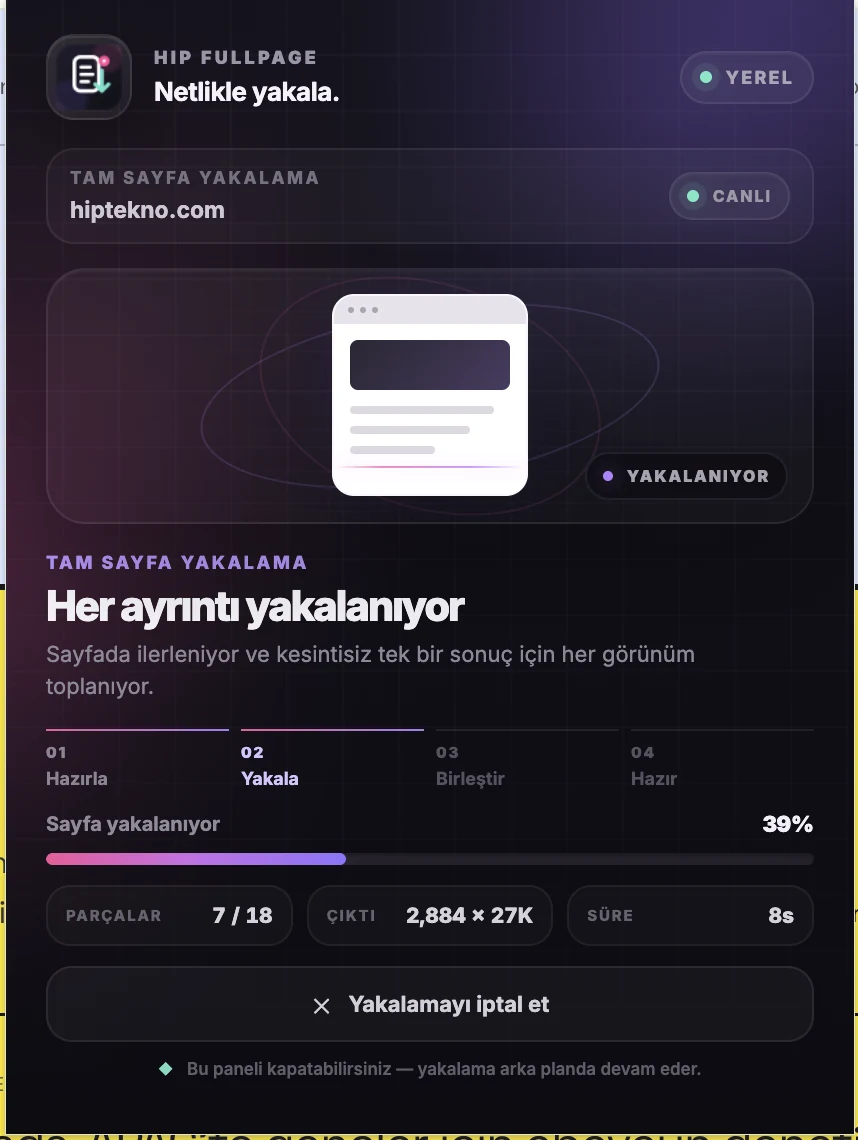
Click the Hip FullPage icon to start a full-page capture immediately.
FULL PAGEA clear guide to using Hip FullPage, from your first capture to editing, the local Library and export.
Use the extension icon for a full-page capture. For more focused captures, use the context menu or keyboard shortcuts.
Click the Hip FullPage icon to start a full-page capture immediately.
FULL PAGEOpen Visible Area, Selected Area, Element Capture and Library directly from the page.
4 SHORTCUTSAssign your own Chrome shortcuts to the capture modes you use most.
CUSTOMIZEHip FullPage follows one simple flow: capture, review, refine if needed, then export.
Click the Hip FullPage icon in your browser toolbar. Full-page capture starts in one click; the other capture modes are available from the menu.
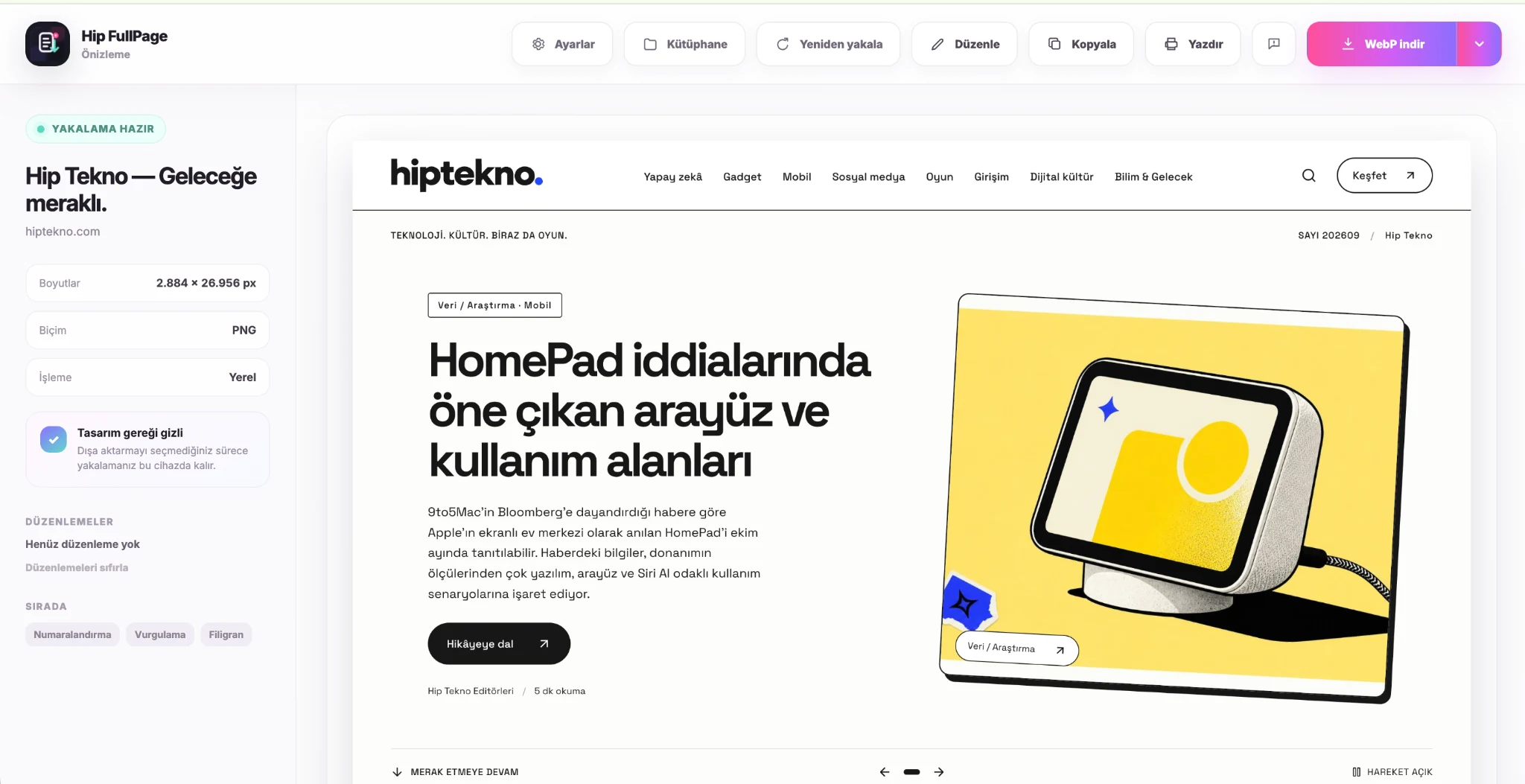
When capture finishes, Preview opens automatically. Check the result, recapture, copy, print or export it directly.
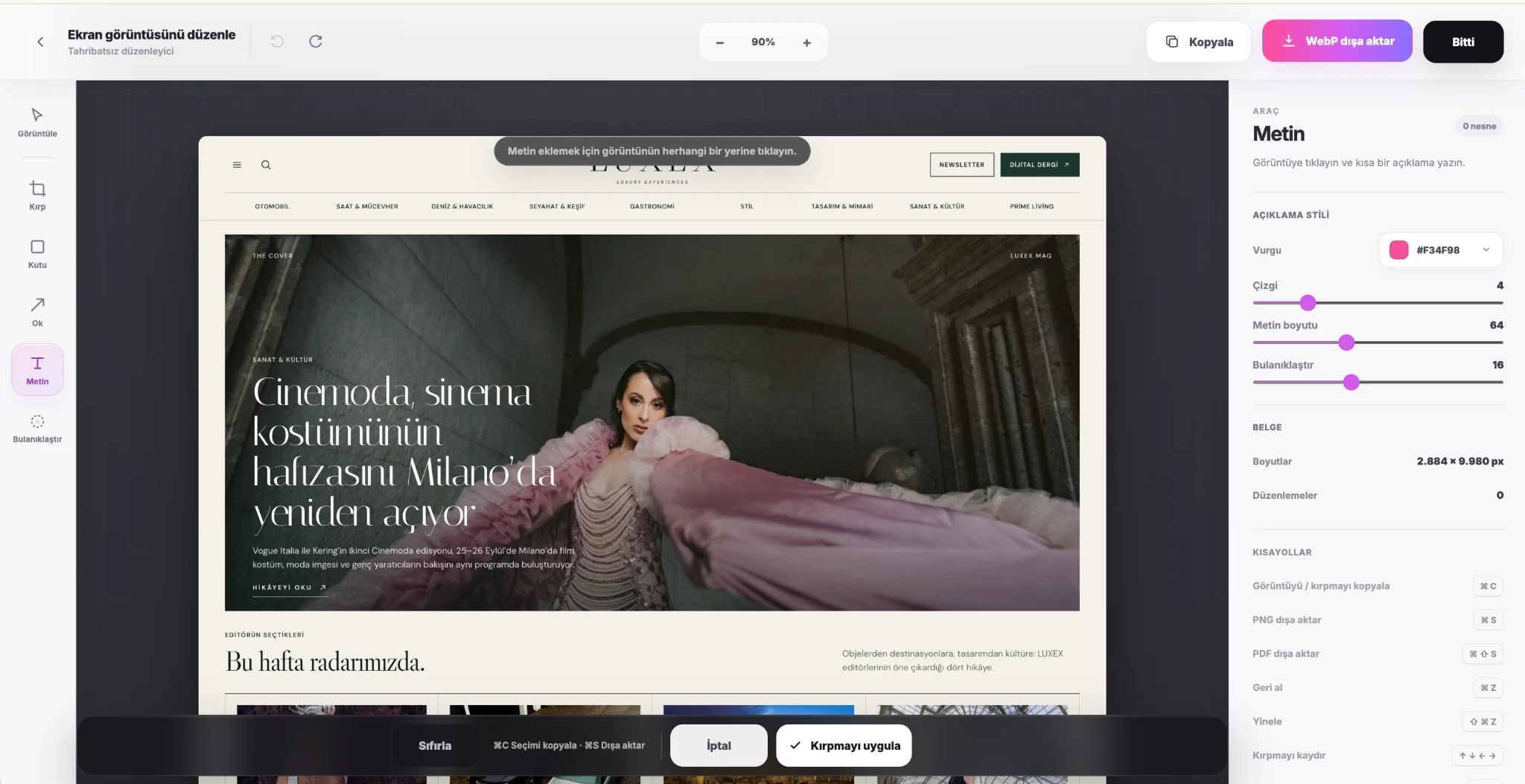
Use crop, box, arrow, text and blur tools to prepare the screenshot for sharing.
Your captures stay in the Library in this browser. Reopen, edit or export them later.
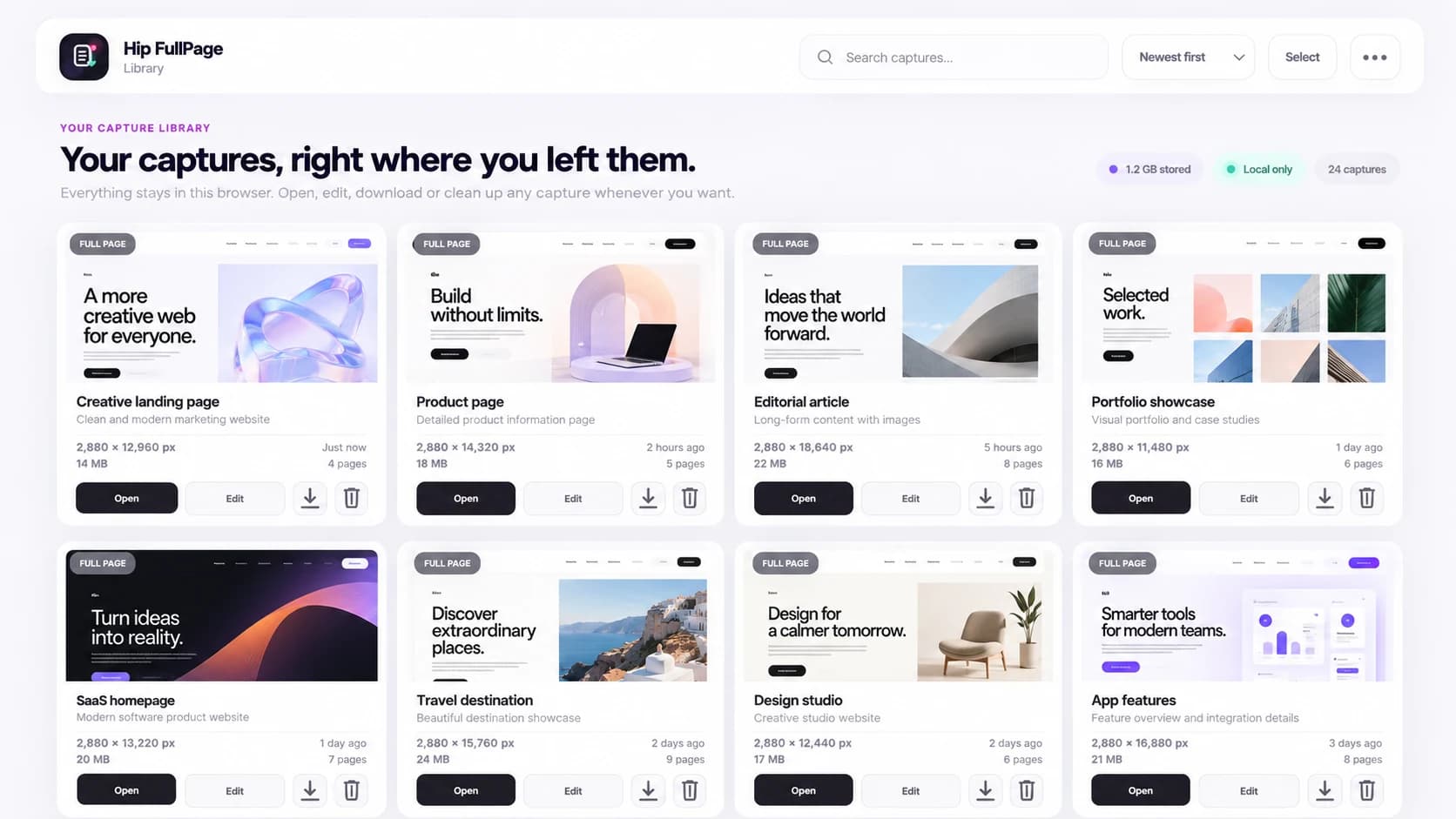
Full Page is the core workflow. Visible Area, Selected Area and Element Capture are there for faster, more focused jobs.
Automatically scrolls and captures the page from top to bottom.
Captures exactly what is visible in the viewport.
Captures only the region you select.
Targets one interface or content element.
01Crop and refine the frame.
02Mark important areas with boxes, arrows and text.
03Blur sensitive areas.
04Export as PNG, JPEG, WebP or PDF.
Preview keeps copy, download, PDF and print in one place. You can also set JPEG and WebP quality from Settings.
Put the capture on your clipboard and paste it into another app.
Choose the right format for UI, photos or a smaller file size.
Export as one continuous page or printable A4 sheets.
Move from Preview straight into the browser print flow.
In the current Free release, captures are stored locally in your browser. No account is required, and screenshots are not automatically uploaded to a remote server.
Privacy details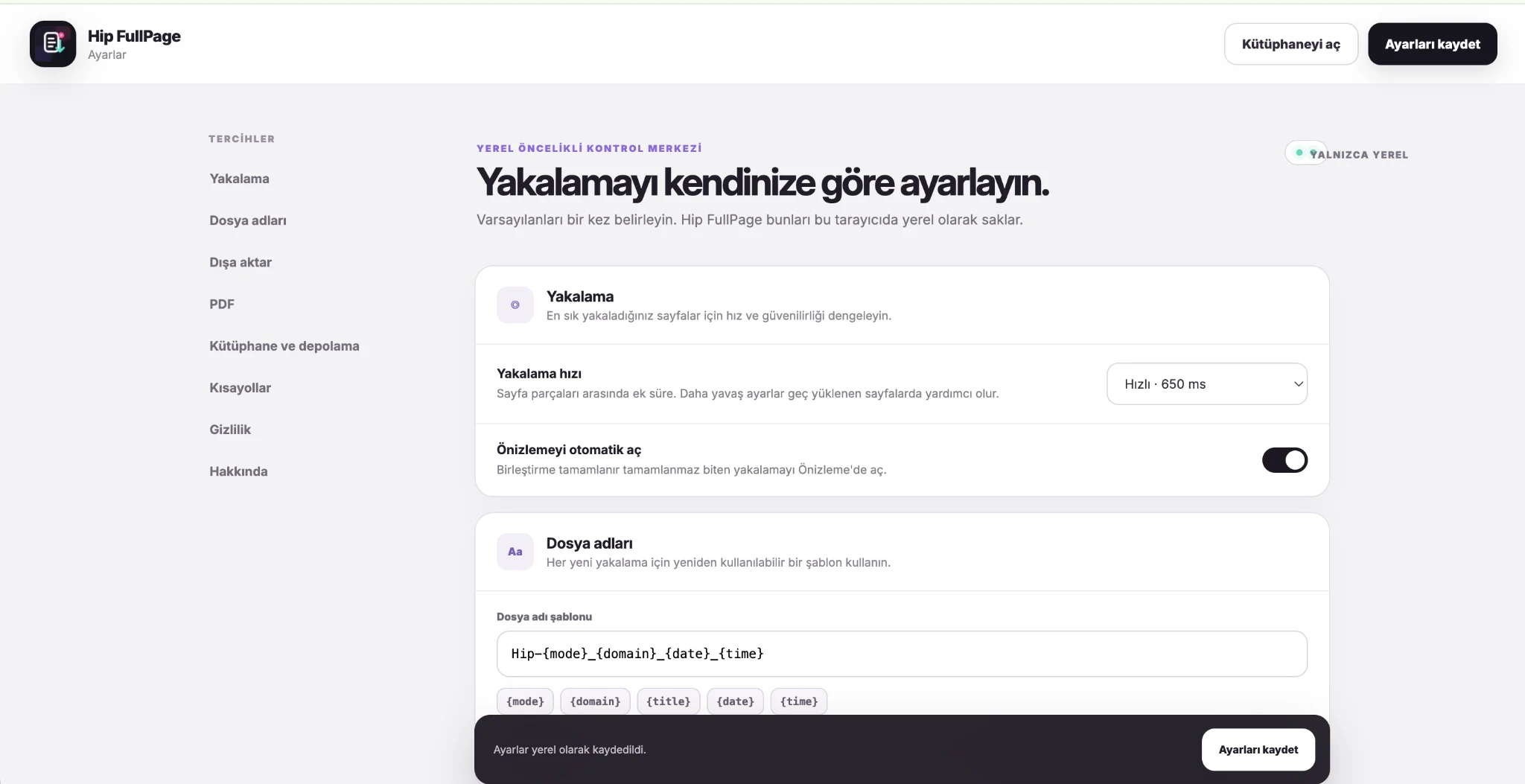
Manage capture speed, automatic Preview, file naming, export preferences, PDF options, Library behavior and shortcuts in one place.
Pace and automatic Preview.
Templates with domain, date, time and mode.
Format, quality and download behavior.
Continuous page or A4 layout.
Local storage and automatic cleanup.
Manage Chrome keyboard assignments.
No account, no cloud upload.
Choose the Hip FullPage interface language.
Wait for the page to finish loading, allow animated content to settle, then capture again. If needed, try a slower capture speed in Settings.
This can happen on dynamic pages with nested scrolling. Make sure you are using the latest version; if it continues, include the page address in an issue report.
Chrome internal pages and some restricted browser URLs may block extension access for security reasons. Try again on a normal webpage.
The Library depends on local browser data. Clearing browser data, removing a profile or changing devices can remove local captures.
Chrome-managed extension menu labels follow the browser language. The manual language setting inside Hip FullPage changes the product screens.
Long, dense pages require more segments, images and local assembly. On lazy-loaded pages, a slower capture pace can produce a more reliable result.
Send us the issue. A screenshot is included only if you explicitly attach one.